Got a list of URL’s and wanna open the complete list at once to reduce the manual copy paste ? This post might help you in that case. I was in need of this URL opener while pinging my websites with the list of Pinging Servers.

Paste the URL’s
- Just Copy and Paste or type the URL’s one per line, inside the text box, in the website.
- You may enter as many URL’s you need to be opened.
- Now, Click on the Submit Button
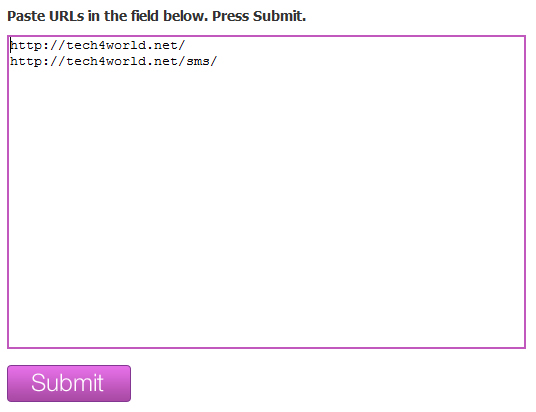
URL opener
Open URL’s
- Now you will see a new window with all your links specified.
- Just Hold CTRl Button while clicking on the open all button.
- This will open each Link in New Window or sometimes in new tabs , depending on the settingd you have kept in the browser.
- You shall modify them by selecting Tools->Options in Firefox
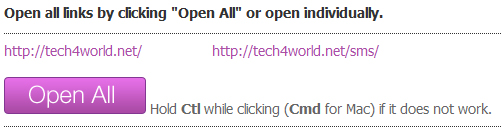
url opener
Is this Useful for you ?? Share with us how this helped you 🙂

well really usefull for pinging blog….
Nice post dude.I have been searching for opening many urls.This post came as a nice gift to me 🙂
thanks dude. Yeah, it tops in search engine too 🙂
There is also great url opener
Cool, thanks for the add !!