How to Change System Tray Time format to AM/PM in Windows 7

by Siddharth on August 10, 2010

Usually, Windows 7 Operating System shows System Tray timings in 24 Hr. clock.  ie., 21:34 .

If you would like to change it to AM / PM format , just follow these Simple procedures on your Windows 7.
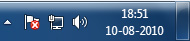
system tray clock How to Change System Tray Time format to AM/PM in Windows 7

Step 1 :

  • Go to Control Panel and select View by: Large icons .
  • Select “Region and Language” in the Control Panel.
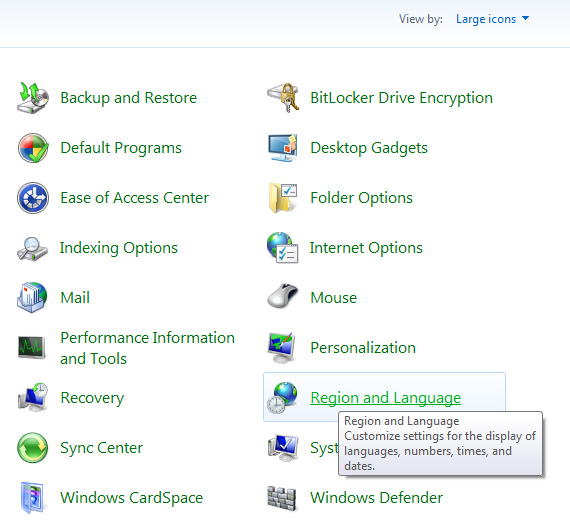
region and language How to Change System Tray Time format to AM/PM in Windows 7

Step 2 :

  • Now a “Region and Language ” dialog box will appear.
  • Select “Additional Settings” from the dialog box .
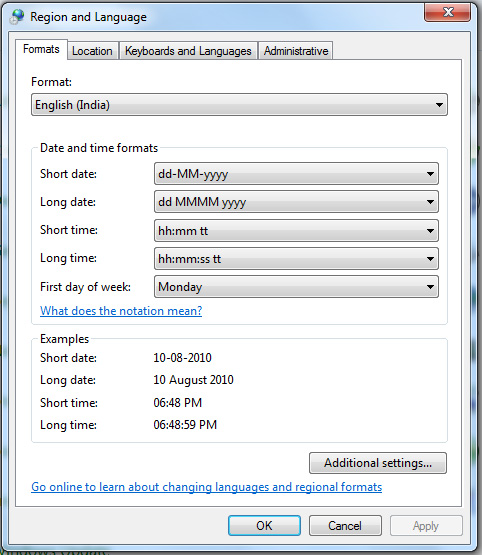
additional settings How to Change System Tray Time format to AM/PM in Windows 7

Step 3 :

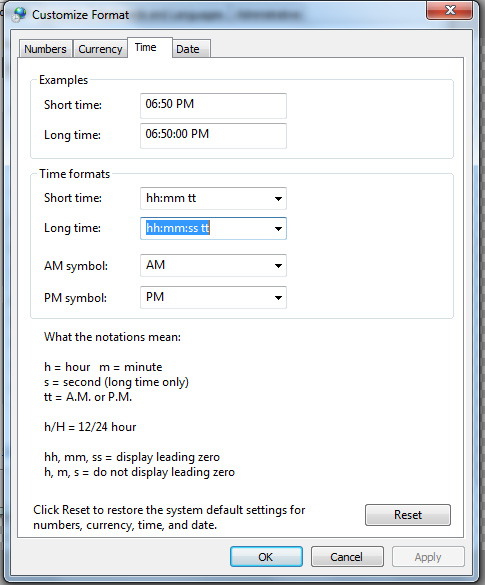
  • From the new dialog box that appears, Select “Timetab .
  • In the “Time Formats” area, modify the format as,
  • Short time : hh:mm tt
  • Long time : hh:mm:ss tt

date time format How to Change System Tray Time format to AM/PM in Windows 7

Step 4 :

  • Now select “Apply” and “ok” in the dialog boxes that appear .
  • Its all done. . Now you can time format on your System Tray as will appear as AM / PM
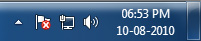
am pm time format How to Change System Tray Time format to AM/PM in Windows 7

Hope you like the article. Do share your comments below, if this helps you in some way or other. icon smile How to Change System Tray Time format to AM/PM in Windows 7

Related posts:

  1. Minimize Mozilla Firefox to System Tray
  2. 15 Amazing Windows 7 HD Wallpapers
  3. How to Analyze and Follow a list of Twitter users from CSV format
  4. How to Setup a Static IP Address in Windows Vista
  5. Funny Error Messages And Pop-Ups on Windows

{ 8 comments… read them below or add one }

Sathish @ TechieMania August 11, 2010 at 10:46 AM

Twitter: @sonasathish

An useful post for Windows 7 users. But not for me, since I am using XP :)

Siddharth August 11, 2010 at 10:56 AM

Twitter: @Siddharth_IN

But still , the procedure is it more or less same i hope :)

Cal, Denver Painting Contractor August 14, 2010 at 12:40 AM

Twitter: @PaintingDenver

Great info. for Windows 7 operators/owners. Save this to your favs! I’m sure theres more to come~

Technoblogsite August 19, 2010 at 3:07 AM

Twitter: @technoblogsite

thanks for your help mate as i was messed up with settings….
Technoblogsite recently posted..Twibies – Repository of icons and themes to Twitter

Siddharth August 19, 2010 at 6:35 PM

Twitter: @Siddharth_IN

ha .. Welcome ..

Jared August 26, 2010 at 1:38 AM

Thank you for the info. I was wondering about this, and now I know! Thank you!

Siddharth August 26, 2010 at 4:17 PM

Twitter: @Siddharth_IN

glad that it really helps you some way :)

cheap flights cheap tickets June 24, 2011 at 2:51 PM

Thank you so much for such a nice and complete information mostely blogger provide uncomplete information which i found here after half hour browsing. Thank you so much.

Leave a Comment

CommentLuv badge

Previous post:

Next post:

Free Email Updates


Delivered by FeedBurner

Related posts:

  1. Minimize Mozilla Firefox to System Tray
  2. 15 Amazing Windows 7 HD Wallpapers
  3. How to Analyze and Follow a list of Twitter users from CSV format
  4. How to Setup a Static IP Address in Windows Vista
  5. Funny Error Messages And Pop-Ups on Windows